Instructions to enable Second-factor authentication
Follow the instructions below to enable the second-factor authentication with your eduID.it account.
If you haven’t already, activate your eduID.it account by following the instructions here:
eduID.it Account Instructions.
Setup steps
-
After the login, move to the Account management page and click on "Two-Factor Authentication Request" in the Actions menu.
-
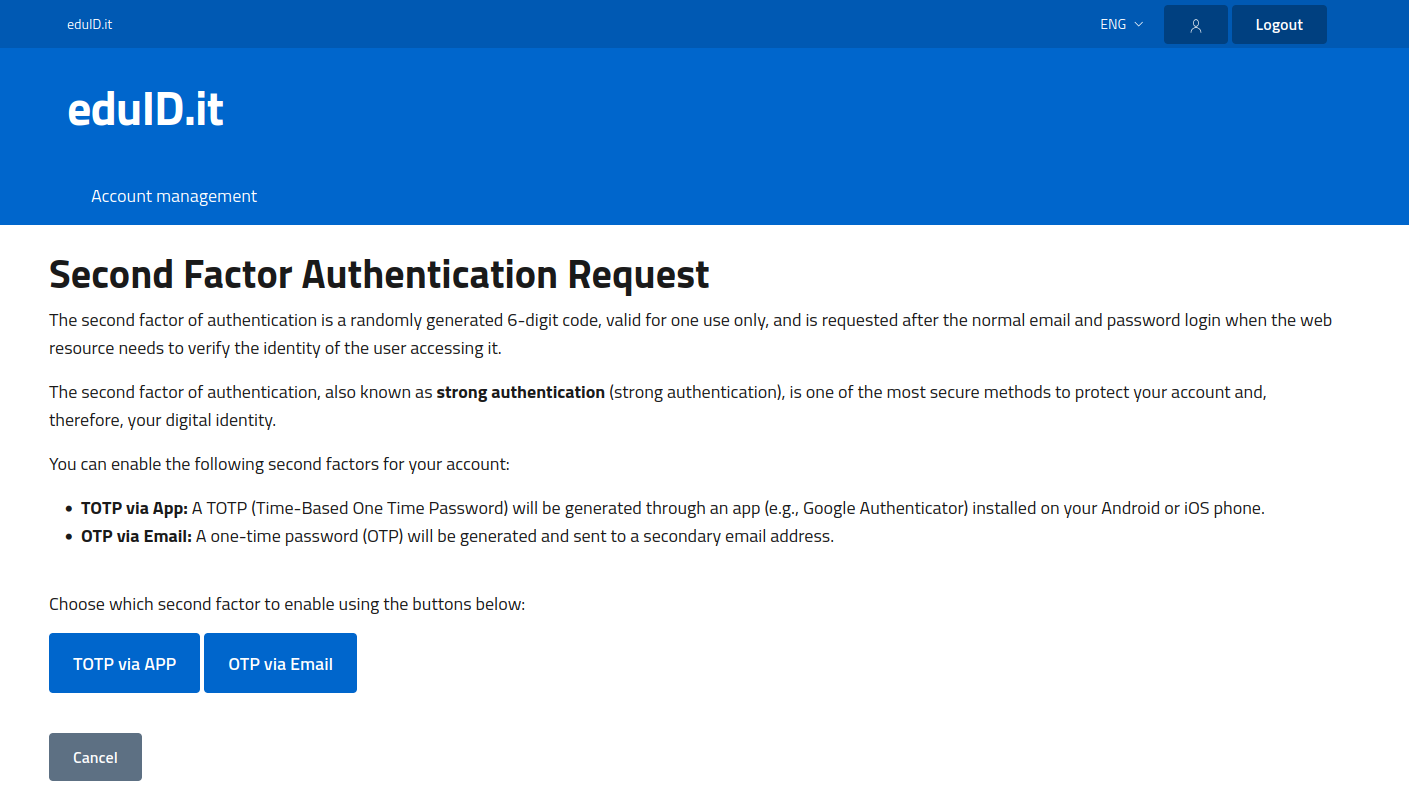
Once redirected to the new page, choose which type of second factor you want to enable. You can also enable both.
-
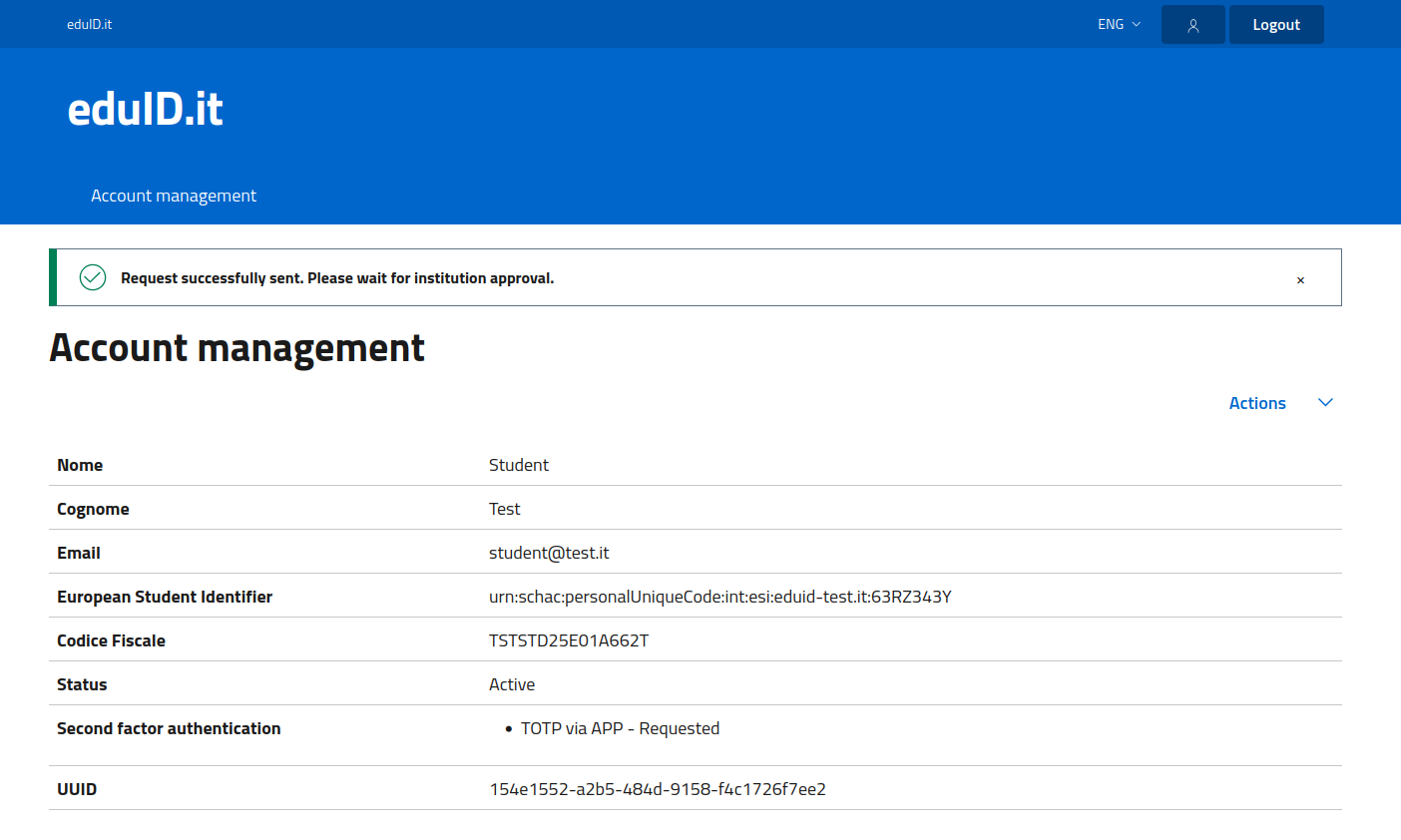
Once you enable a second factor (e.g., TOTP via APP), you will receive a message indicating whether the request was successfully sent.
-
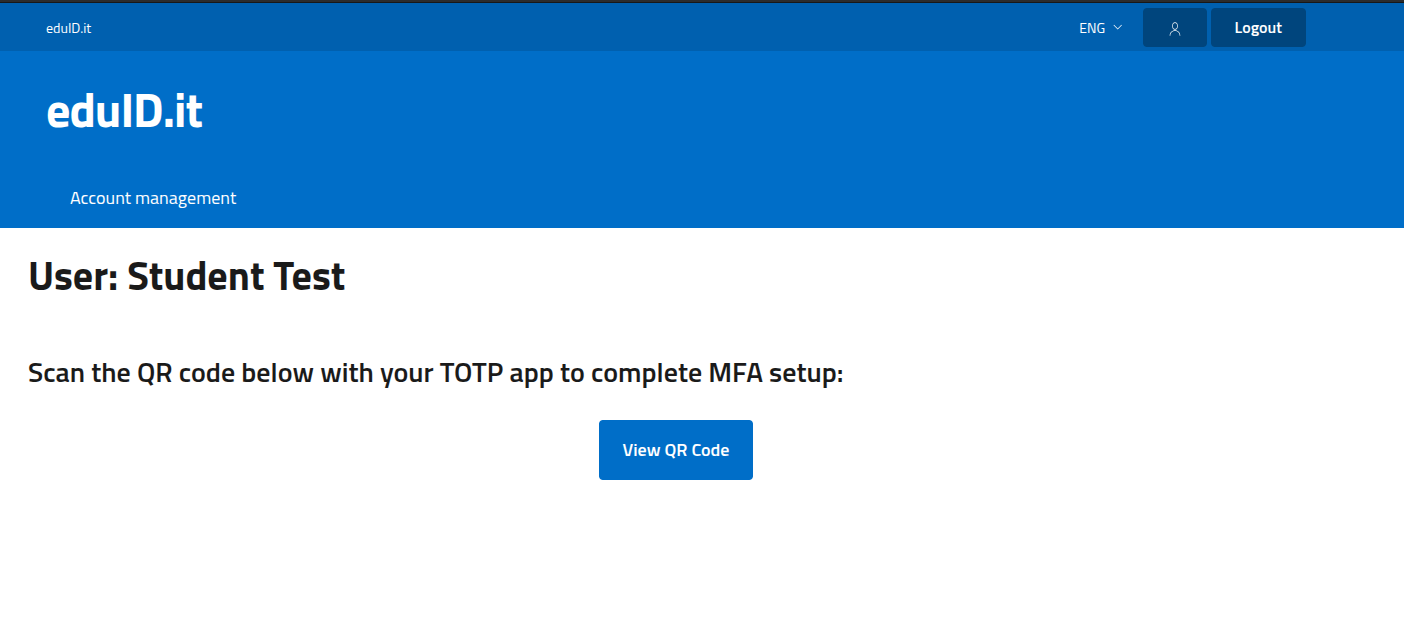
As soon as your institution's administrator approves the request, you will receive an email containing a link to view the QR Code. After clicking the link inside the email, you will be redirected to the page that allows you to view the QR Code. Warning: The QR Code can be seen only once. Don't close this page before adding it to the Google Authenticator app.
-
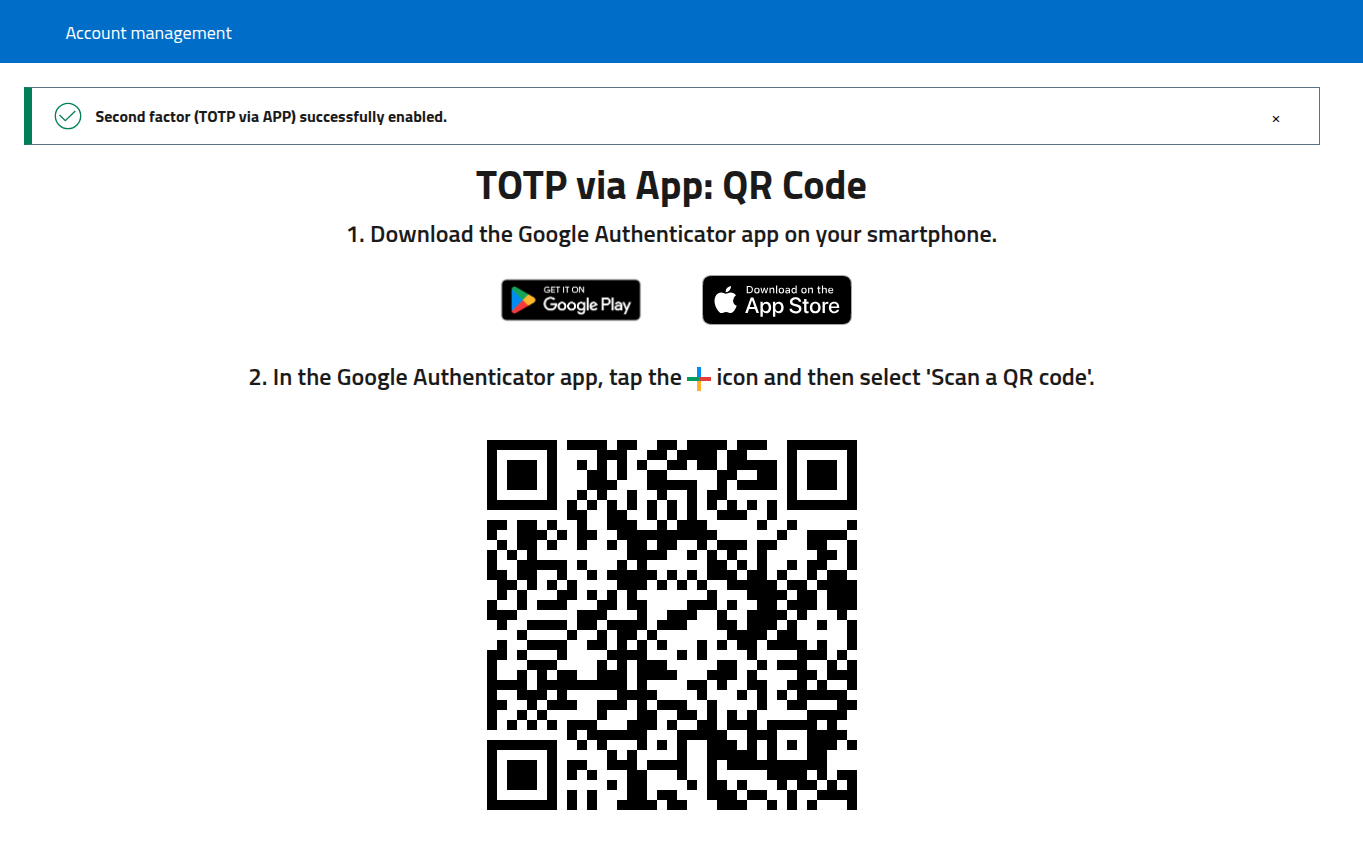
By clicking the button View the QR Code, the system will display the QR code to be entered in your Google Authenticator app: